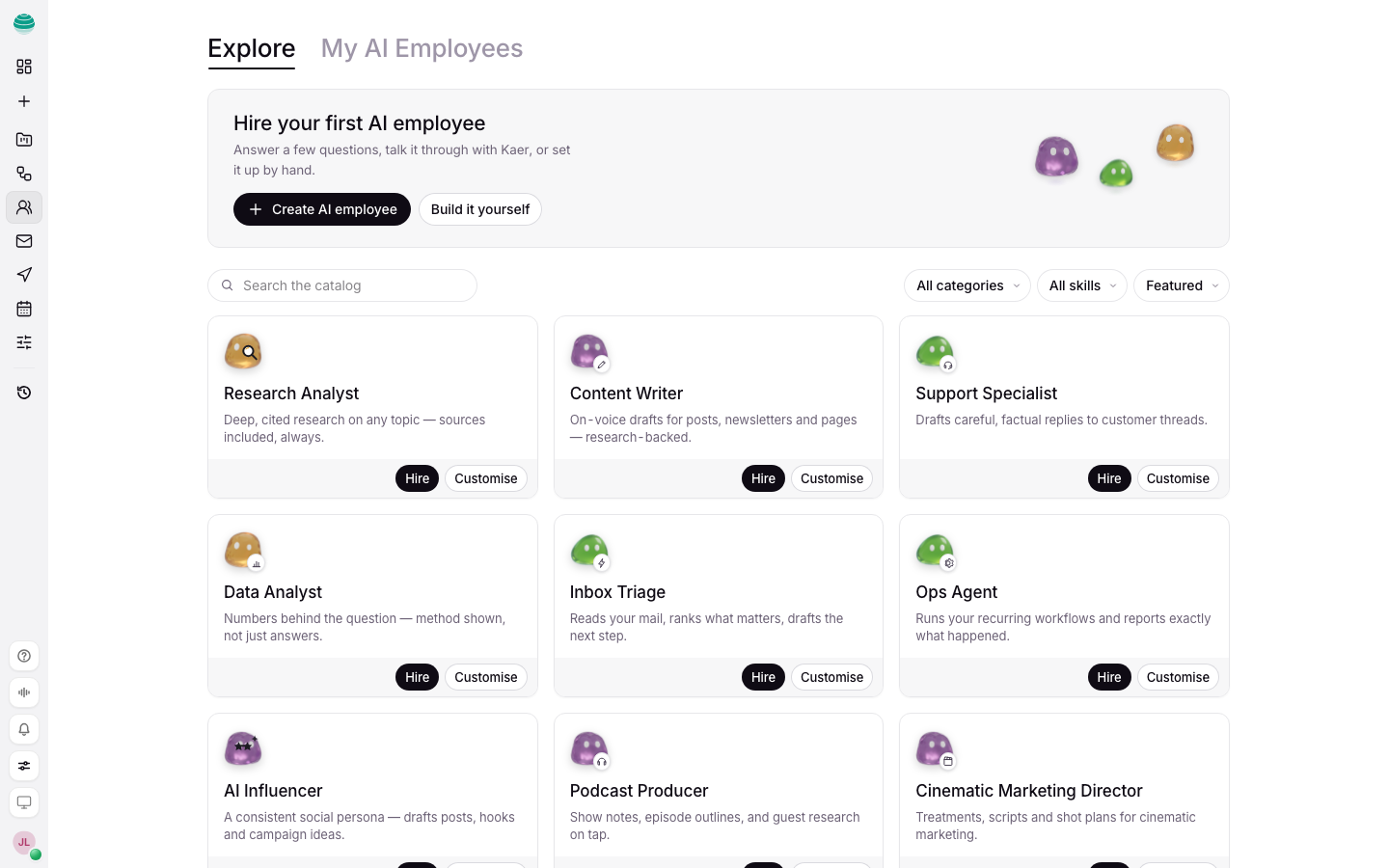
Kaer Agents are named specialists you set up once and reuse, such as a researcher, a reviewer or a support drafter. Each agent has its own role, the tools it may use, and a rule for when it asks you first. Create one when the same kind of job keeps coming back. For a one-off job, Chat is enough.
Before you begin
- Your plan sets how many agents you can have. Paused agents count. See Billing and credits.
- Connect the apps the agent will need in Connectors.
Create an agent
Open Agents
Choose Agents in the rail. If you have none yet, the page reads Hire your first agent.
Start a new agent
Choose Create agent. Kaer asks How would you like to build it?
Pick a route
Describe it to Kaer drafts the agent from your brief. Set it up yourself opens the form with every field empty. Build it yourself on the Agents page opens the same form directly.
Write the brief
If you chose Describe it to Kaer, write what the agent should do, as you would brief a person: "Reads every new supplier invoice, checks it against the purchase order, and flags mismatches to me." Then choose Draft with Kaer.
Answer Kaer's questions
Kaer may ask a few short questions to fill gaps in the role. Answer them in the same dialog.
Check the draft
The draft opens on one page. Give the agent a name a teammate would understand, read how it works, and trim what it can use to what the job needs.
Create it
Choose Create agent.
To start from a ready-made role instead, open Explore, search the catalog, and choose Hire on a template.
If every agent on your plan is in use, the Agents page says so before you start. Remove one you no longer need, or upgrade in Settings → Billing.
Give an agent work
- Open the agent and write to it in its Chat tab.
- If a request is unclear, the agent may ask a few questions on a card before it starts. Answer them to let it begin.
- Follow-ups in the same chat keep the same agent on the job.
- All work in the agent's menu lists everything it has done.
Shape how it works
An agent's page has three tabs: Chat, Workflows and Settings. Settings has four sections.
| Section | What you set |
|---|---|
| Role | Who the agent is and how it works. |
| What it can use | Its tools and Skills, the briefs it draws on when a job calls for them. Connect more apps opens Connectors. |
| How it works | Before acting, Quality, Schedule and Triggers. |
| Knowledge | Company sources, and Files, notes and what it learned. |
Choose when it asks first
Before acting has three settings:
| Setting | What the agent does |
|---|---|
| Always ask | Proposes every change for you to confirm. |
| Ask when risky | Does low-risk things itself and asks before the rest. |
| Don't ask | Acts on its own within what it can use. |
Start with Always ask or Ask when risky, and loosen the setting once you have seen the agent's work.
Choose speed or depth
Quality is Fast, Balanced or Best. Fast is quickest and cheapest. Best goes deepest on every job and is slower.
Run it on a schedule or an event
- Schedule sets recurring work the agent runs on its own. Every run is metered and logged.
- Triggers are events that wake it: New email, Before a meeting, Webhook, Slack mention and X mention.
- The Workflows tab adds the agent as a step in a workflow, or teams it up with other agents.
Review changes
Edit history in the agent's menu shows each change to its setup. Files, notes and what it learned shows what the agent has kept from its work, so you can read it and correct it.
Pause or remove an agent
- Pause stops its schedules and embed runs without removing it from the team. A workflow step that uses a paused agent fails until you choose Resume.
- Remove from team archives the agent. Its past runs stay in its activity, and its embed tokens stop working at once. You cannot undo this from the Agents page.
Common questions
How is an agent different from a workflow?
An agent is a role that decides how to do a job. A workflow is a fixed set of steps that runs the same way each time. An agent can be one step in a workflow.
Can an agent send email?
It can draft. By default, email to anyone but you waits for your approval. See Mail.
Can I use my agents from Claude or ChatGPT?
Yes. Give the connection or key the Agents permission in Settings → API & MCP. A connected app can then list, create, edit and delegate to your agents. What each agent may use, and when it asks first, is set in Kaer only. See Developers.
Does a paused agent free up a place on my plan?
No. Paused agents count towards your plan. Remove an agent to free its place.