Settings is about you and your account, not the work. Use it to change how you appear, how Kaer looks and behaves, what it tells you about, and to reach billing, team and developer controls.
Find a setting
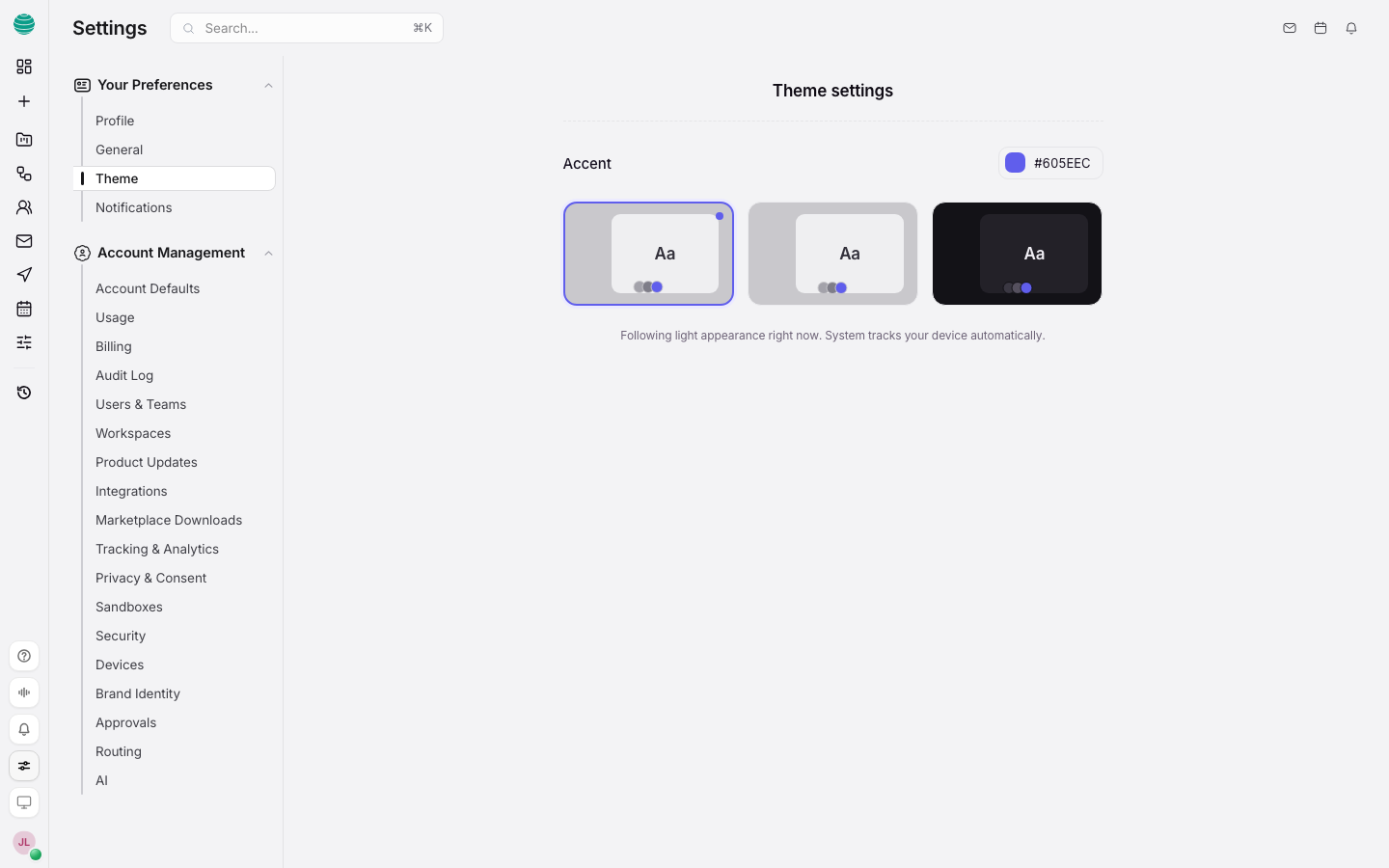
Settings has three sections in the left list.
| Section | Pages |
|---|---|
| Your Preferences | Profile, General, Theme, Notifications |
| Developers | Overview, MCP keys, Tools, Activity. See Connect assistants |
| Account Management | Usage, Billing, Mail, Users & Teams, Workspaces, Security, Devices, Privacy & Consent, Approvals, Routing, AI and more |
The account menu, opened from your name at the bottom of the rail, has shortcuts: Profile, Settings, Subscriptions (billing), Developers, Devices, Appearance and Logout.
Change your name and photo
Open Profile
Go to Settings → Profile.
Set your display name
Edit Display name. Until you set one, Kaer uses the name from your sign-in account. It shows wherever your name appears in Kaer.
Choose a photo
Your sign-in account's photo is used by default. If you signed in with email, add a photo by signing in with Google, or pick a mark in Theme.
Your Email address is where you sign in and where notifications are sent.
Change how Kaer looks
In Settings → Theme, pick the accent colour and the interface theme. Appearance in Settings → Account Defaults chooses light, dark or follow your system.
Choose your notifications
In Settings → Notifications, turn each type on or off:
| Notification | When it arrives |
|---|---|
| Agent activity | When an agent starts, finishes or needs your input |
| Task completions | When a task is marked done |
| Mentions | When someone mentions you in a task or chat |
| Product updates | Occasional news about new features |
Set how Kaer works for you
| Setting | Where | What it does |
|---|---|---|
| Memory | Settings → AI | Lets Kaer remember details from your chats and reuse them later |
| Follow-up suggestions | Settings → AI | Shows a suggested next step when a task finishes |
| Pin a model for every message | Settings → Routing | Turns off automatic model selection and always uses the model you choose |
| Always start a new chat | Settings → Account Defaults | Opens a fresh chat every time you return to Kaer |
| Help improve Kaer | Settings → Tracking & Analytics | Off unless you turn it on. See Privacy |
Manage devices and sign-in
- Devices lists the phones and computers paired to your account, and where you are signed in.
- Security covers sign-in. Kaer accounts sign in with one-time codes, so there is no password to reset. See Sign in.
Where other account settings live
- Plan, credits, payment methods and invoices: Billing and credits.
- People and roles: Team.
- Mailboxes, triage and rules: Mail.
- Data and consent: Privacy.